
Automatically create Linear issues for tasks that come up in meetings

Important to-dos that need to be tracked and completed come up in conversation all the time–whether you're talking to a new customer and they hit a snag in the onboarding flow that needs to be fixed or your team's discussing who's going to create the social media graphics for the new launch.
Circleback automatically detects and assigns these action items. With automations, you can make sure they end up in the right place on Linear where you manage your team's backlog of tasks. Let's walk through how to set this up.
- Login to Circleback. Don't worry if you don't have an account yet, it takes about 2 minutes to create one.
- Go to Automations from the navigation menu on the left.
- Create an automation.
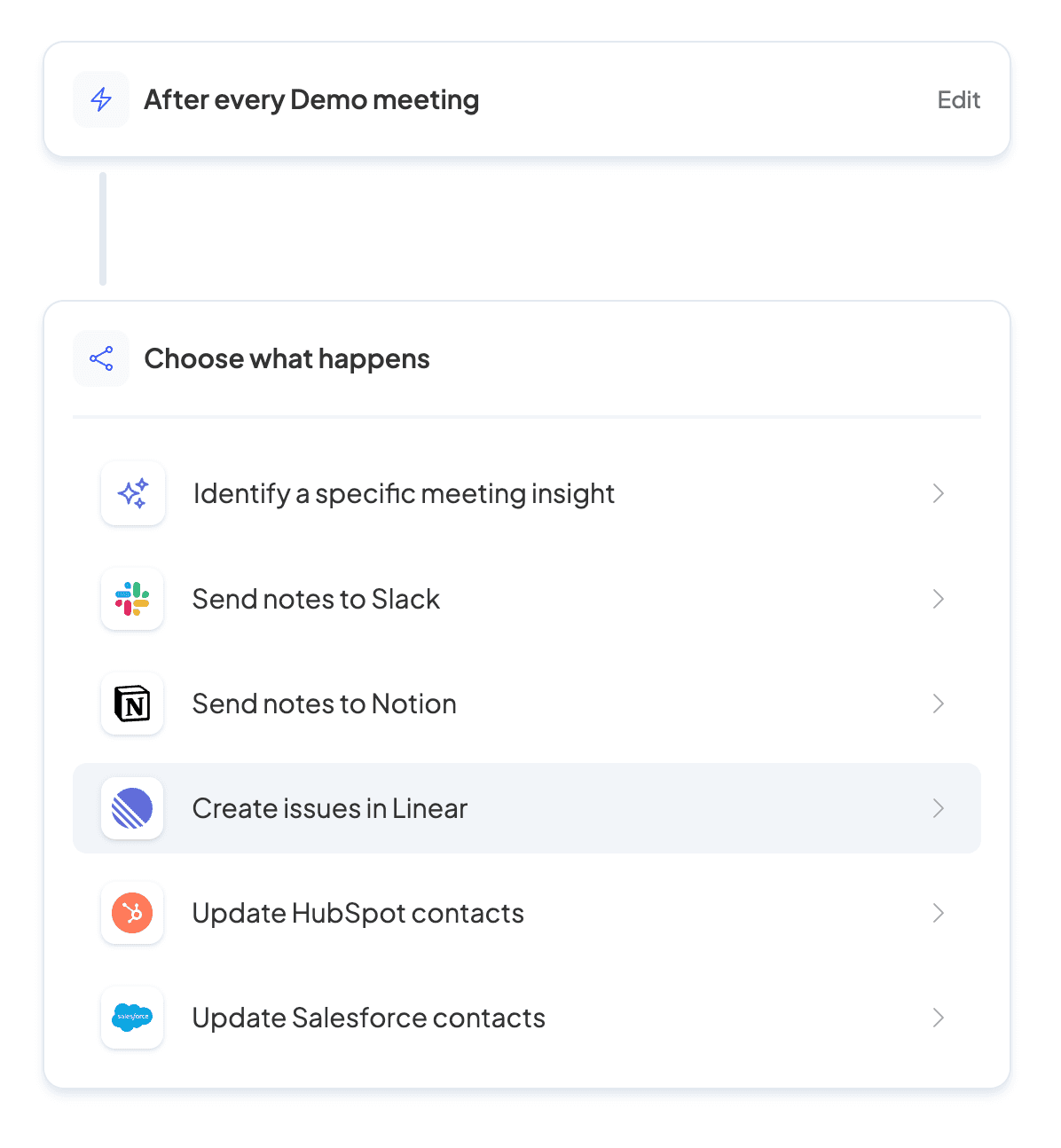
- By default, the automation will run after every meeting. If you'd like, you can choose to have it run after meetings that match certain tags, meeting titles, participants, invitee emails or email domains, or number of invitees. Choose the relevant filters and continue. You can always update this later.
- Select Create issues in Linear.
- If you haven't yet, connect the Linear workspace you want to use.
- Once you've connected your workspace, select the team where you want the issues to be created in Linear and select Done.
- Give your automation a name at the top and press Create in the top right.
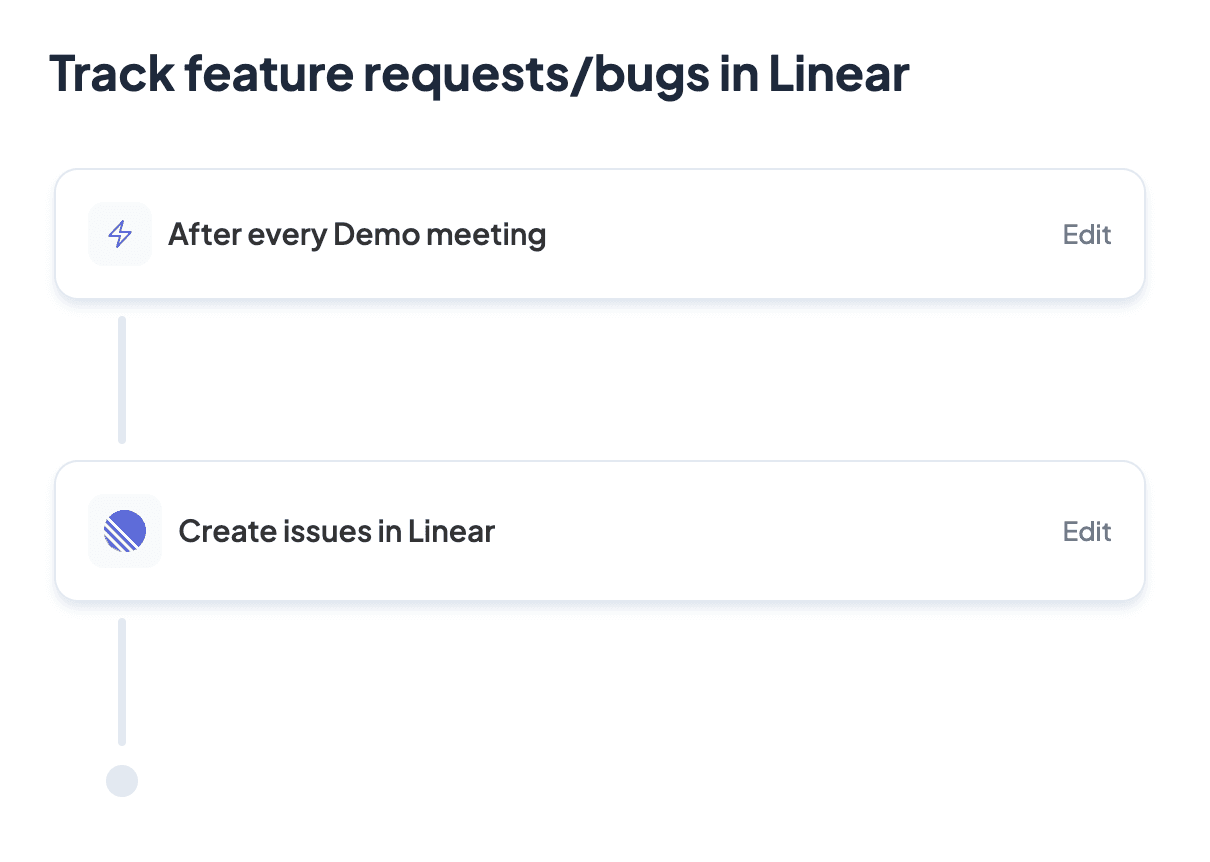
That's it! After each matching meeting, Circleback creates a Linear issue for each action item, with a link back to the meeting. When an action item's owner has the same email as a member of the Linear team, the issue is assigned to them, and other action items become unassigned issues unless you turn that off. You can also run the automation by hand, and you can set up multiple automations if you'd like to create issues under separate Linear teams for different types of meetings.
Sending meeting follow-ups to Jira
Circleback has no built-in Jira integration, and Jira teams have three routes to the same result:
- Custom connector in Ask Circleback. Ask Circleback can connect any public remote MCP server as a custom connector, using a name, the server's remote MCP URL and an optional OAuth client ID and secret. You review the server's tools before connecting and approve again if they change. As of Oct 2026, Atlassian publishes a remote MCP server that covers Jira at
https://mcp.atlassian.com/v2/mcp, and an Atlassian organization admin may need to allow the connection first. Once it is connected, you can ask Circleback to create Jira work items from a meeting. This works on request in Ask Circleback. - Zapier. A Zapier automation step sends meeting outcomes to Zapier after each matching meeting, and a Zap can pass them to Jira.
- Make. A webhook automation step sends meeting outcomes to Make, which can pass them to Jira.