
How Circleback Writes Meeting Notes and How to Check Them
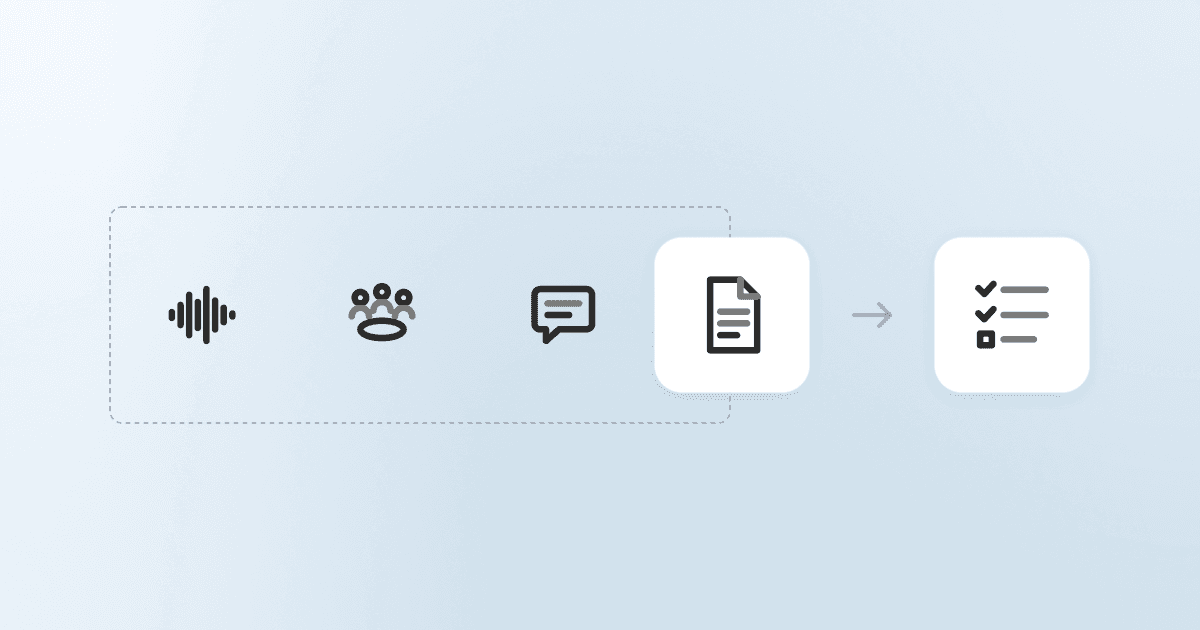
A feature list says little about the notes you read after every meeting. What matters more is what goes into those notes, who they are written for, and how fast you can check a line against what was said. This guide covers how Circleback produces meeting notes and how to verify them yourself.
Notes written for the people in the meeting
Circleback writes its AI notes around one question: what do the people in this meeting need to walk away knowing? That framing decides what the notes include and what they leave out.
Each meeting also produces a speaker-labeled transcript, action items assigned to people, and searchable context that later questions can draw on. For background on the stages behind AI meeting notes in general, see How AI Meeting Notes Actually Work.
Speaker labels on every recording method
Notes are easier to use when you know who said what. Circleback separates speakers on every recording method, and how speakers get named depends on how the meeting was recorded:
- Meeting bot: recordings carry the real names of participants.
- Desktop app and mobile app: speakers are named by matching voice signatures and calendar invitees.
- No invitees to match: a speaker can appear as "Participant 1", "Participant 2", and so on. This can happen with a desktop or mobile recording when the meeting has no calendar invitees.
When notes come from a desktop or mobile recording, check the speaker names before you forward an attributed quote or action item.
What is on screen becomes part of the notes
When a meeting is saved as video by the meeting bot or the desktop app, Circleback reads what is shown on screen, such as slides, dashboards, and documents. That content goes into the meeting notes, action items, and AI insights. So a figure on a shared dashboard or a deadline on a slide can reach the notes without anyone reading it aloud.
Screen content has limits:
- It needs a saved video recording. Audio-only recordings and meetings with recording storage turned off have no screen content.
- Recordings larger than 512 MiB are skipped.
- Video with nothing relevant on screen is skipped.
- Screen analysis stops after 8 minutes.
Ask Circleback and the Circleback MCP server reach screen content through the notes, action items, and insights, rather than as raw screen text or video.
Private notes that shape the AI notes
Anyone can add their own private notes to a meeting, including before it starts, from the calendar event. Private notes are saved in Circleback, stay private when the meeting is shared, and improve Circleback's AI notes.
Some useful things to add before a meeting:
- The agenda or the decision the meeting needs to reach
- Background on a customer, candidate, or project
- Questions you want answered by the end
Notes in the language you choose
Circleback detects the spoken language automatically and lets you choose the language of AI meeting outcomes. A team can hold a meeting in one language and read the notes in another.
Checking a note against the recording
Every note should be easy to trace back to the moment it came from. In Circleback, checking a line takes a few steps:
- Pick the note or action item you want to confirm.
- Find the matching passage in the meeting transcript.
- Click a word in the transcript. The recording player moves to the moment that word was spoken, so you can hear it in context.
- To show someone else, highlight the transcript text and choose Share moment. This copies a link that opens the transcript and recording at that point. Anyone with access to the meeting can open it. See Share meeting moments for details.
Teams that work with transcripts in other tools can trace notes back the same way. The Circleback CLI command cb transcripts read returns speaker labels and timestamps. The Circleback MCP tools for searching and reading transcripts return timestamps.
Action items with owners
Circleback assigns action items to people, so each follow-up has a name attached. After meetings recorded with the desktop or mobile app, check that each owner is a real name and not a "Participant N" label before the action items go out.
Answers across meetings, with citations
Ask Circleback answers questions across your meetings and connected email, and its answers include citations. When an answer matters, open the cited source and confirm the detail there.
How to evaluate the notes from any notetaker
These checks work on any AI notetaker and show more than a feature comparison:
- Use a meeting you attended. Compare the decisions and next steps in the notes with what you remember.
- Check who said what. See whether speakers carry real names or generic labels, and whether that changes with the recording method.
- Check action item owners. Confirm that each follow-up is assigned to the right person.
- Trace one detail to the recording. Pick a name, number, or date from the notes and find the moment it was said. Note how many steps that takes.
- Look for shared screen content. If someone presented slides or a dashboard, see whether the notes reflect it.
- Read the notes as someone who missed the meeting. Ask whether they explain what happened and what comes next.
- Test your languages. If your team meets in more than one language, check how the tool detects speech and which output languages it offers.
A tool that makes these checks quick is easier to rely on week after week.