Set up SSO with Microsoft Entra ID
Let your team sign in to Circleback with Microsoft Entra ID
You can connect Microsoft Entra ID to Circleback by creating a custom SAML application in the Entra admin center.
You need access to manage enterprise applications in Entra and to be an admin of your Circleback workspace. Before you start, check the requirements in Set up single sign-on.
1. In Circleback, go to Settings → General (under Workspace).
2. Under Single sign-on, select Connect. Choose SAML, then select Continue. Keep this form open.
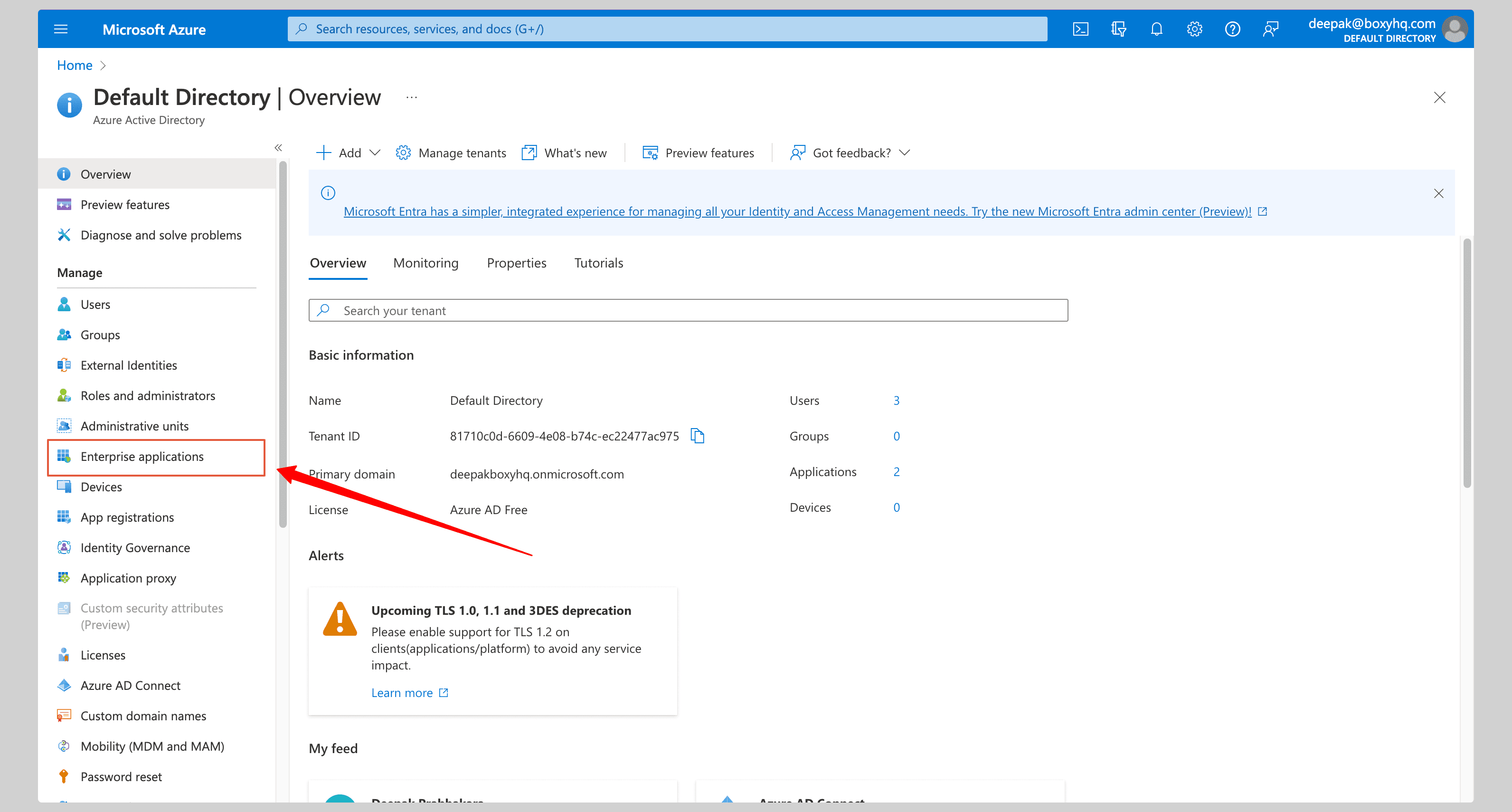
3. In another tab, open the Entra admin center and go to Enterprise applications.
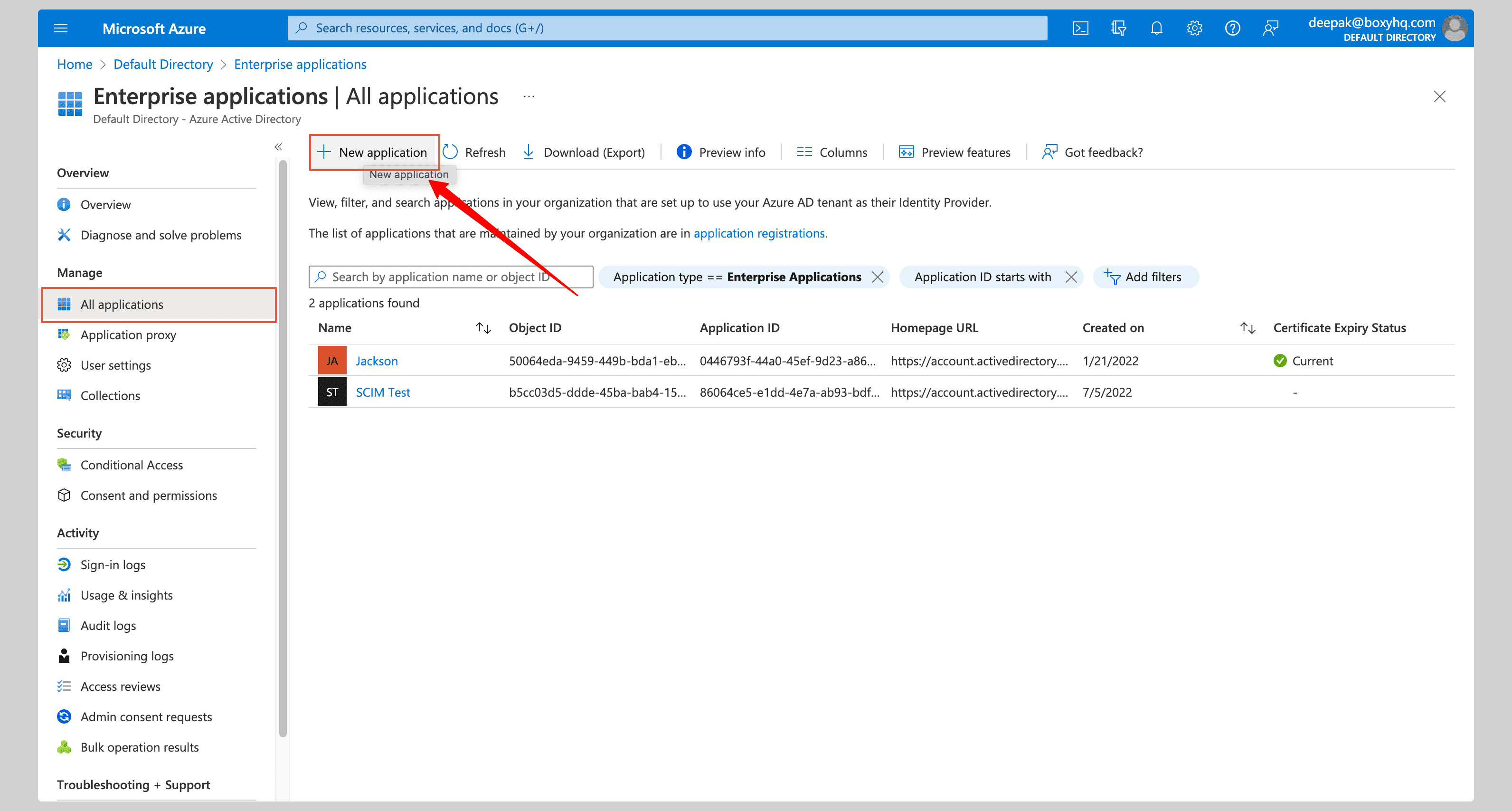
4. Select New application → Create your own application.
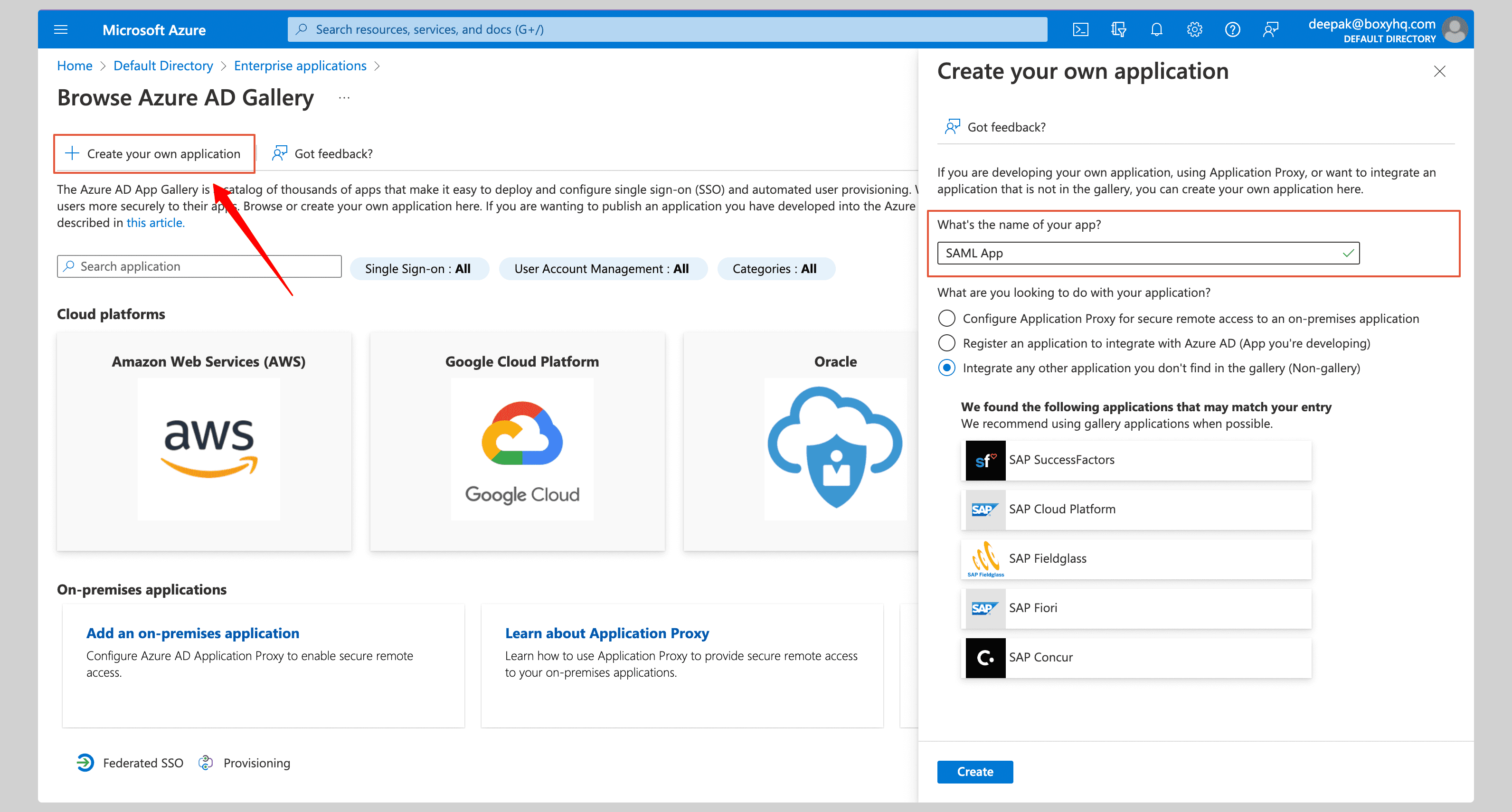
5. Enter Circleback as the name and choose to integrate an application you don't find in the gallery.
6. Select Create.
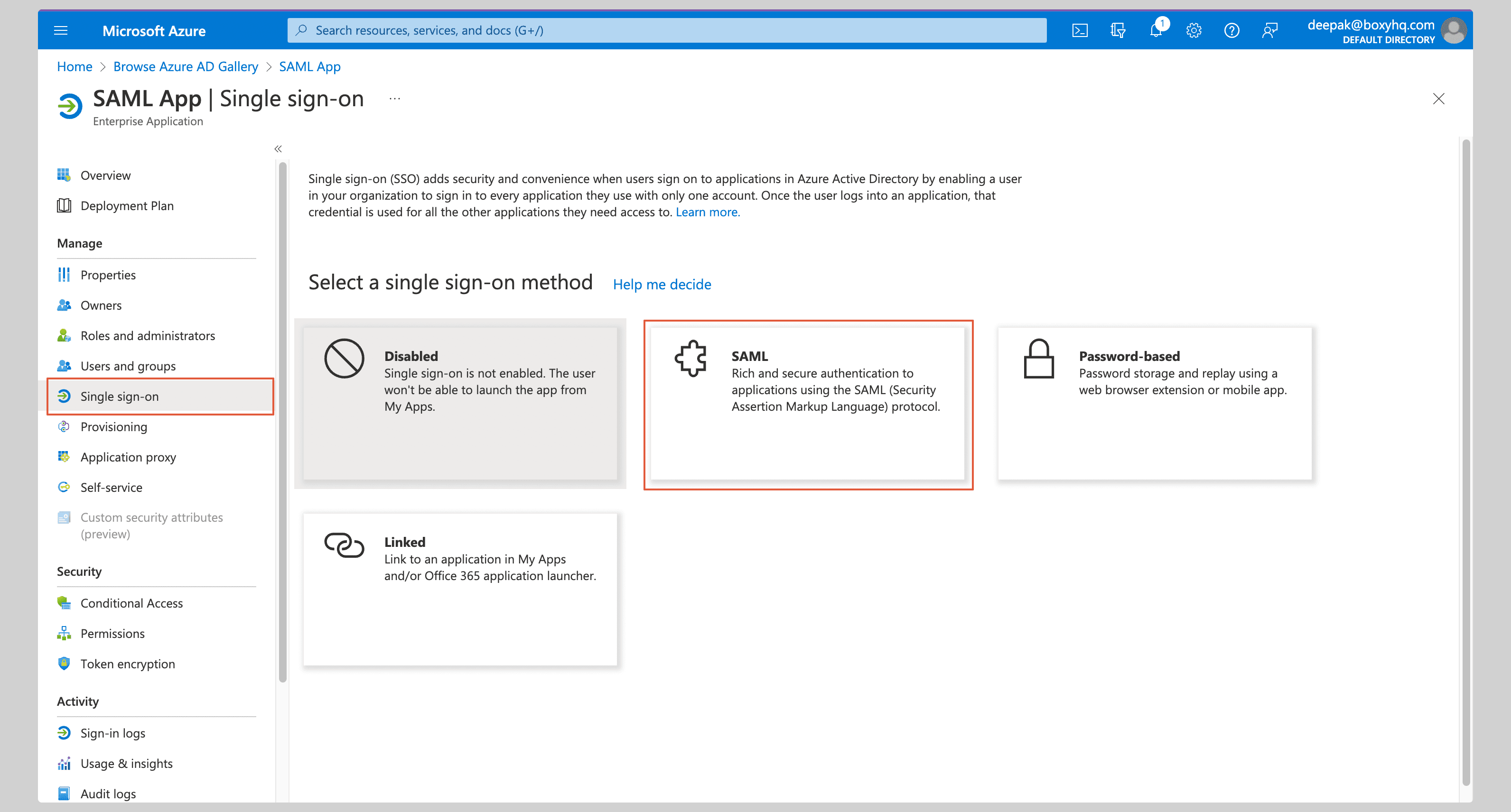
7. Open the application, select Single sign-on under Manage, then choose SAML.
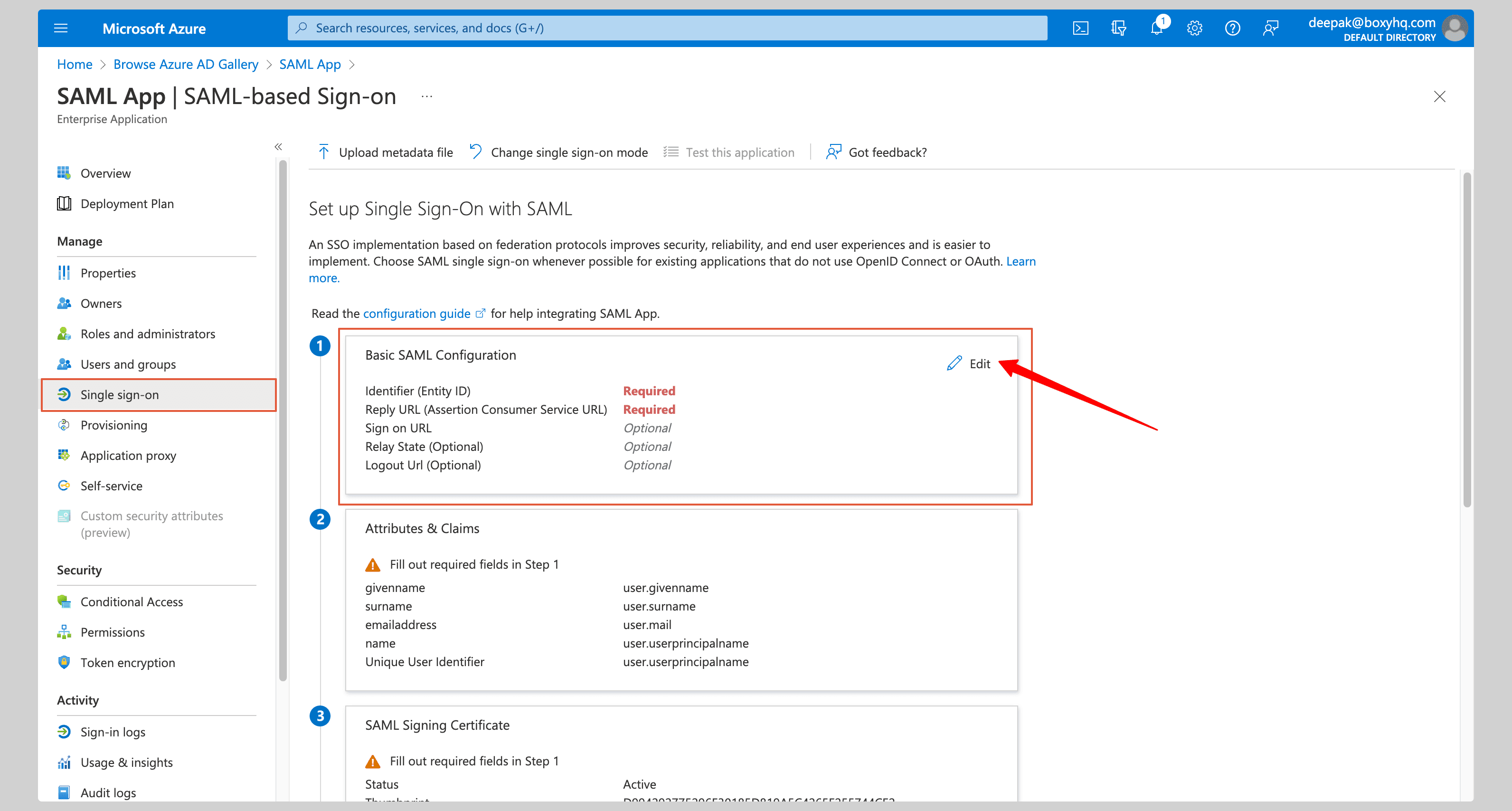
8. In Entra, under Basic SAML Configuration, select Edit. Copy the Entity ID and ACS URL from the open Circleback form into the fields below:
| Field | Value |
|---|---|
| Identifier (Entity ID) | https://circleback.ai/api/sso/metadata |
| Reply URL (Assertion Consumer Service URL) | https://circleback.ai/api/sso/oauth/saml |
9. Select Save.
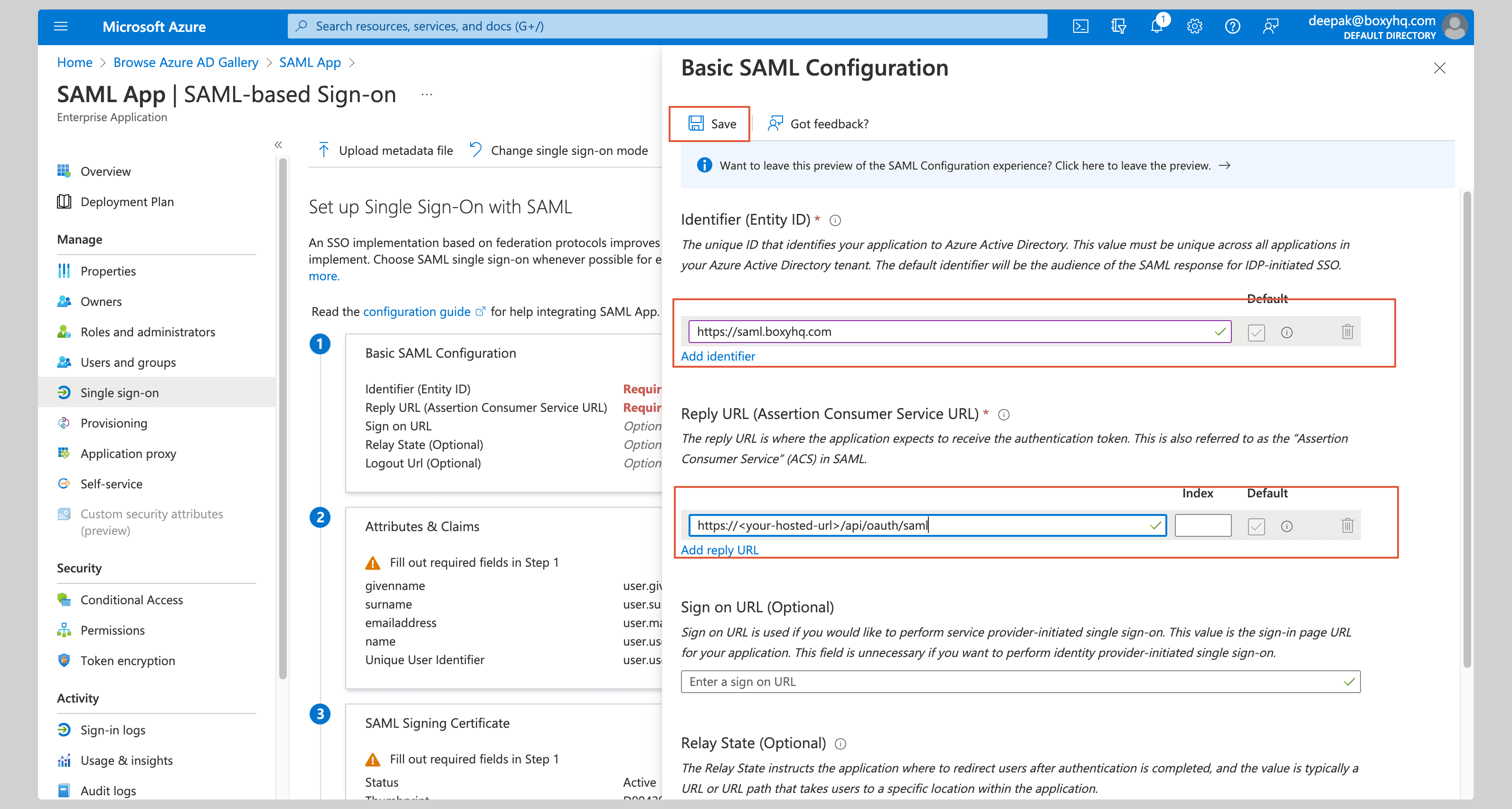
10. Under Attributes & Claims, select Edit.
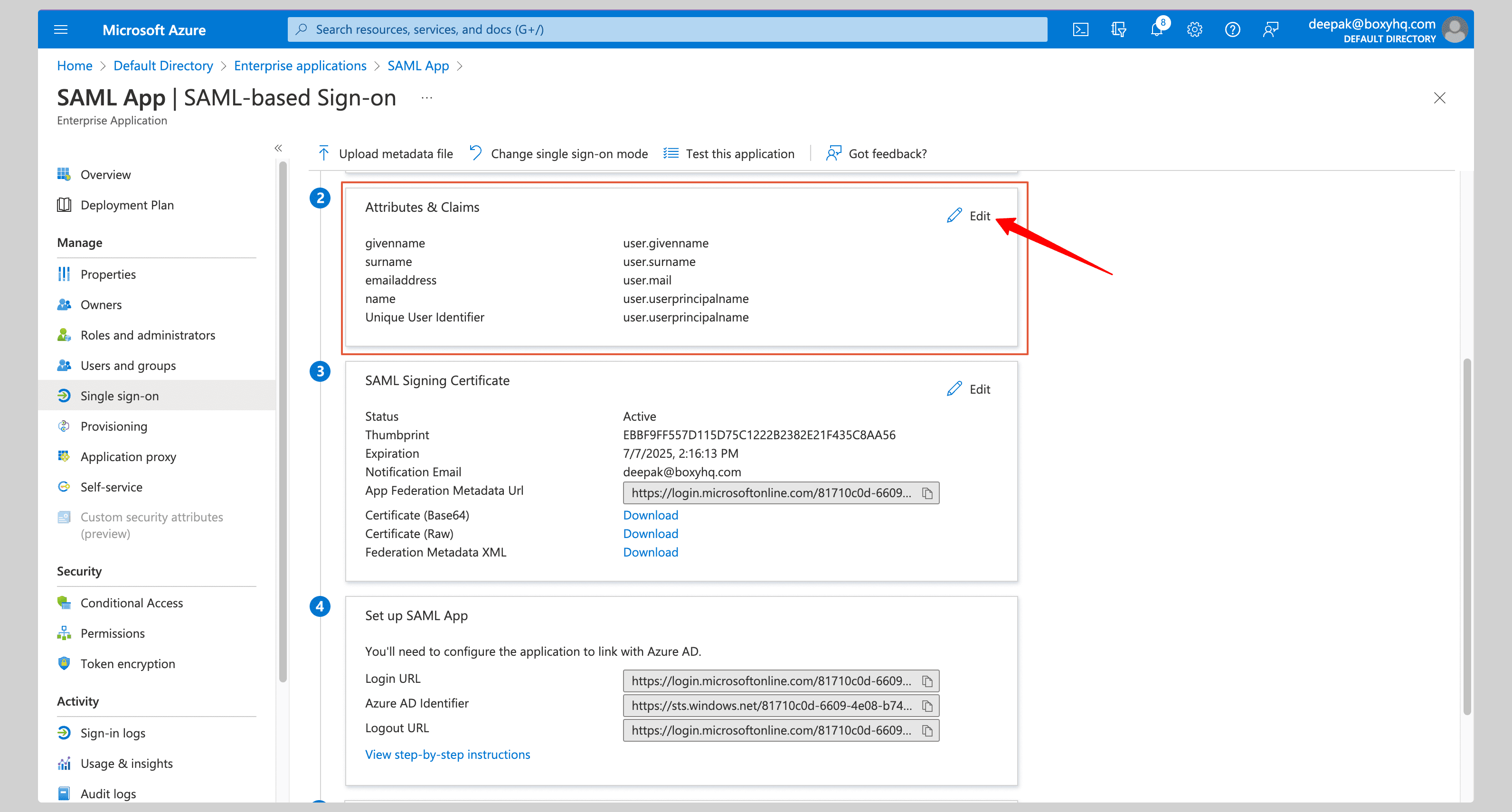
11. Set Unique User Identifier (Name ID) to the email your team member uses in Circleback, with the Email address format. Use user.mail if it contains that email for each assigned user. Only use user.userprincipalname if it matches their Circleback email.
12. Check these claims and add any that are missing:
| Claim | Source attribute |
|---|---|
http://schemas.xmlsoap.org/ws/2005/05/identity/claims/emailaddress | user.mail |
http://schemas.xmlsoap.org/ws/2005/05/identity/claims/givenname | user.givenname |
http://schemas.xmlsoap.org/ws/2005/05/identity/claims/surname | user.surname |
The email claim must also match the member's Circleback email. If you use a different source attribute for their email, use it for both the email claim and Name ID.
13. Save your changes.
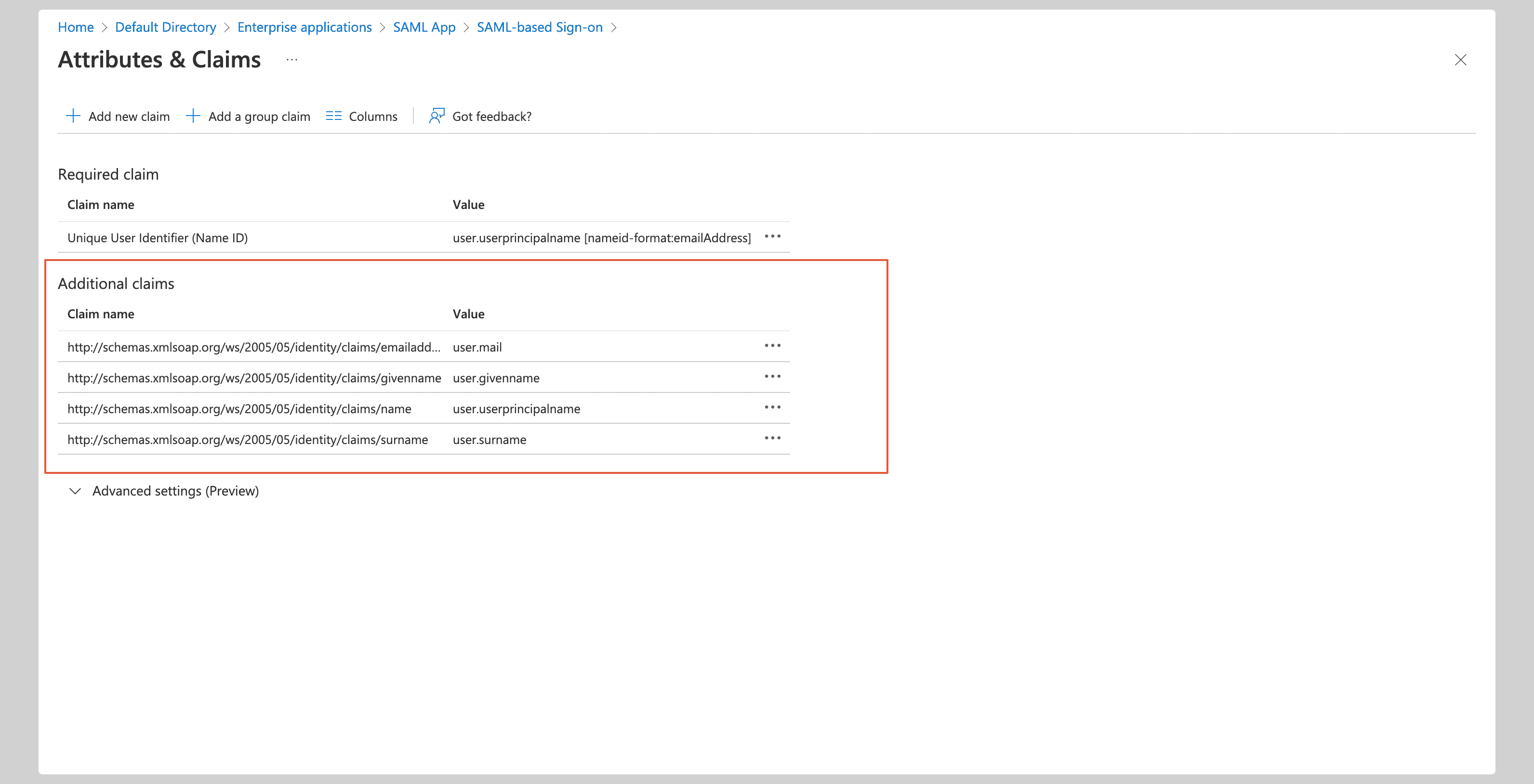
14. Return to Single sign-on in Entra. Under SAML Signing Certificate, download Federation Metadata XML.
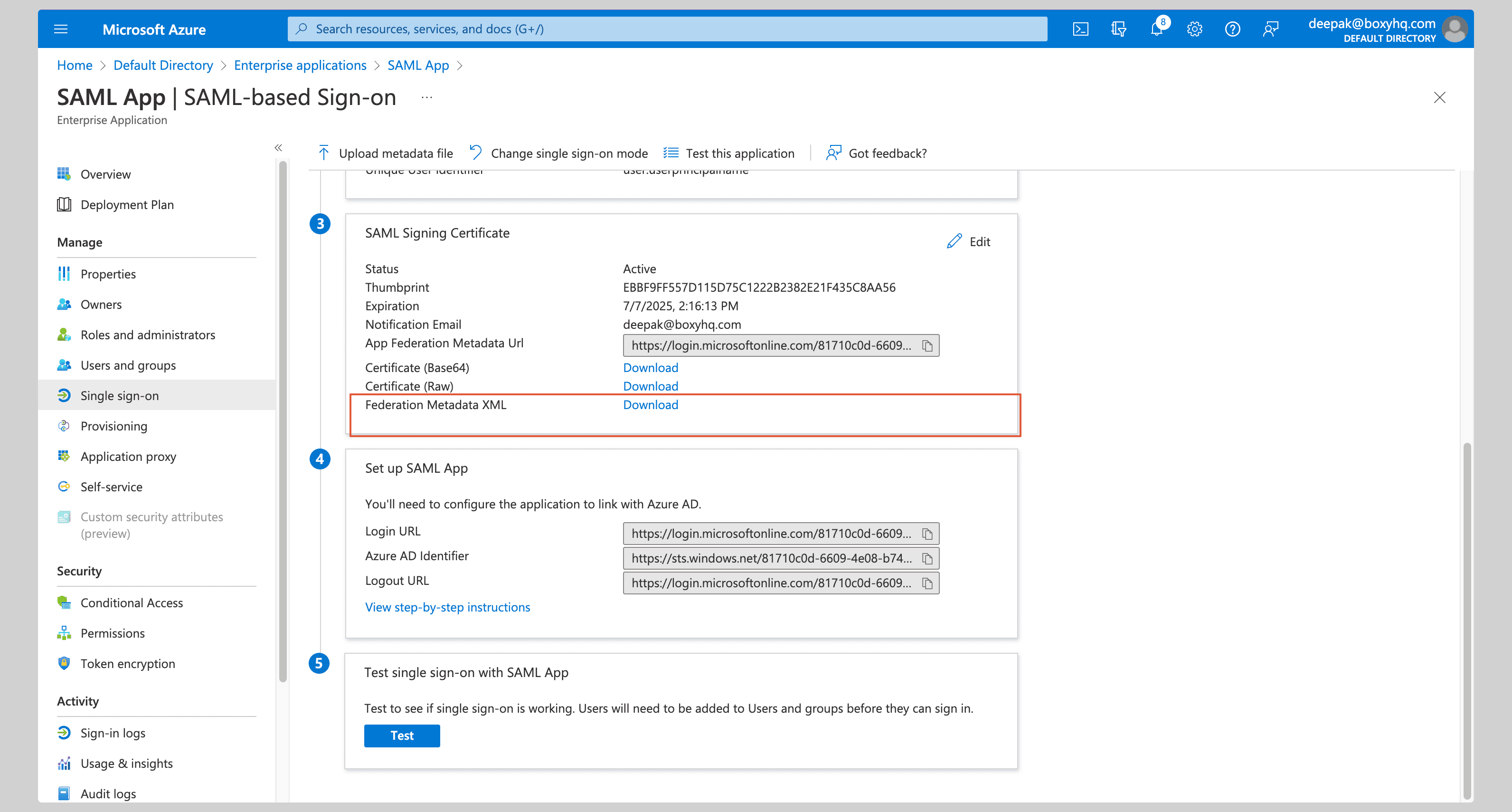
15. In the open Circleback form, under Metadata source, choose Upload XML file and upload the file you downloaded.
16. In Entra, open Users and groups in the application.
17. Select Add user/group and choose the people or groups that should use Circleback.
18. Select Assign.
19. Return to Circleback and select Continue. Leave No directory sync selected for sign-in only, or select Microsoft Entra ID if you plan to set up SCIM provisioning. Select Connect.
If you selected Microsoft Entra ID for directory sync, use the credentials shown in Circleback to set up directory sync.
Assign workspace roles
If you set up directory sync, Entra can also set each member's role in Circleback.
1. In the Entra admin center, go to App registrations → All applications and open Circleback.
2. Select App roles → Create app role. Create these three roles, allowing Users/Groups for each:
| Display name | Value |
|---|---|
| Admin | Admin |
| Member | Member |
| Viewer | Viewer |
3. Go to Enterprise applications → Circleback → Users and groups. Assign each user or group the role they should have. Give each person only one role.
4. Select Provisioning → Attribute mapping → Users.
5. Select Add New Mapping, choose the Expression mapping type, and enter:
| Field | Value |
|---|---|
| Expression | SingleAppRoleAssignment([appRoleAssignments]) |
| Target attribute | roles[primary eq "True"].value |
6. Select OK, then Save.
7. Under Settings, set Scope to Sync only assigned users and groups.
To require everyone in your workspace to log in with SSO, follow Enforce SSO for your workspace.